
Find pro tips and information to help you with your space request in 25Live!
Submitting a space request:
Using the Room Availability view:
Need to find a list of events that you submitted?
View the video and/or use the instructions and screenshots detailed below.
Head to your Dashboard by selecting the 鈥�25Live Pro鈥� button on the top right hand side. You should see 鈥樷�橷鈥� Events in which you are the Requestor鈥� under the 鈥楥reate an Event鈥� button on your Dashboard. Please note, it shows number of events and not necessarily the number of occurrences.

If you need to search for Events, Locations, or Organizations, you can reach the Search page through two different methods:
a) You can click on the 鈥楪o to Search鈥� button on the top right hand of the screen, circled in red.
b) Or if you click on the three stripes with 鈥楳ore鈥� circled in orange, it鈥檒l expand and you can click on 鈥楽earch鈥� as well.


Do you want to build upon a Public Event Search?
On the Search page, please click on the drop down menu next to the 鈥楨vents鈥� option. When you scroll to the bottom, you鈥檒l see the Public Searches at the bottom.


When the list of events appears, please toggle the option to the Advanced Side.

You鈥檒l see the parameters of the search listed out:

If you want to see Confirmed events for tomorrow, you can click on the 鈥極ccurrence Dates鈥� parameter and click on the next day. When you click 鈥楽earch鈥� again, you鈥檒l get a new list of events:

If you want to see events occurring in a number of spaces all at once:
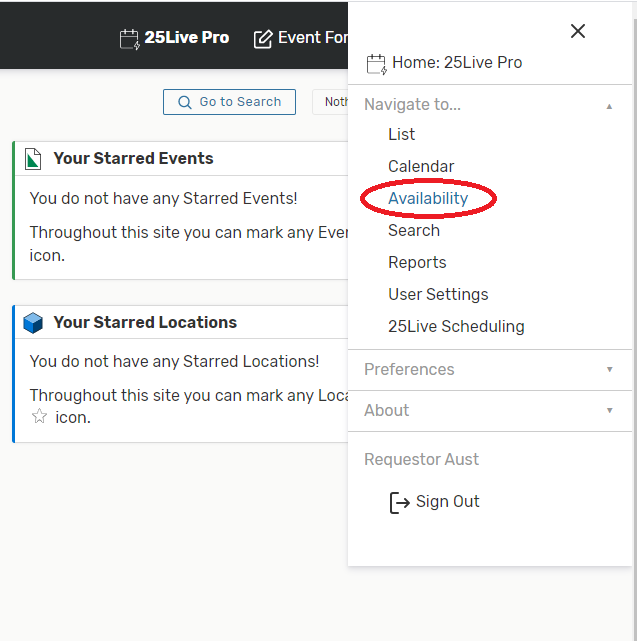
Choose the 鈥楢vailability鈥� view, which is accessible through the 鈥楳ore鈥� option on the top right hand side of the screen.
You鈥檒l get to this view below, where you can select a location search (either one that鈥檚 already made or one that you had created and saved) using the drop down menu. It鈥檒l show rooms down the rows and times by the column. You can view another date as well.



You can adjust how many hours to view at once as well using the small icon above the first location and to the left of the first hour:


If you want to send Event Details to someone else, you can do that directly through the system!
View the video and/or use the instructions and screenshots detailed below.
Click on any event to open it to the Event Details page. On the right hand side, you鈥檒l see a drop down option titled 鈥楳ore Actions鈥�.
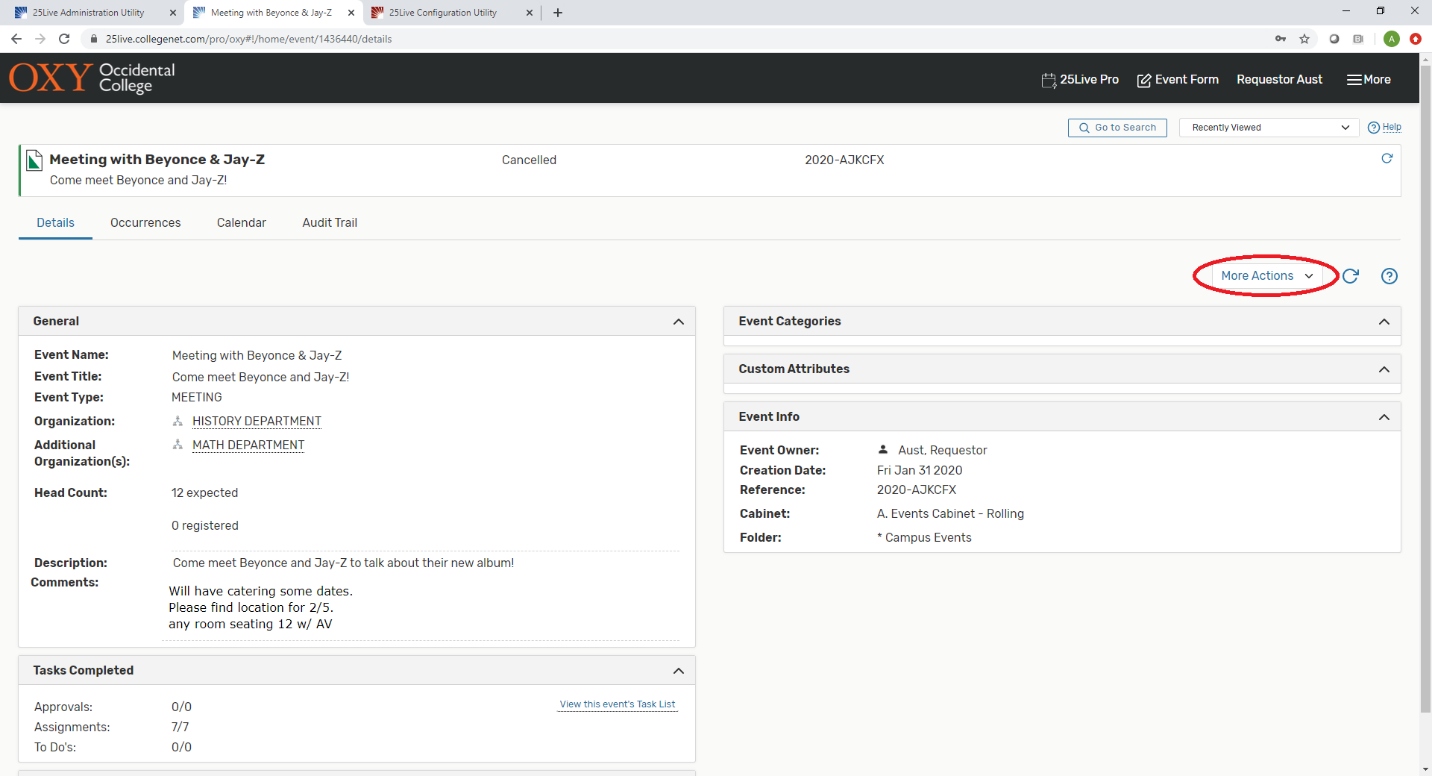
Of that list, select on 鈥楨mail Event Details鈥�

and you鈥檒l get a little pop-up window:

You can send to a variety of people or type in another email address in the 鈥楢dditional Recipients鈥� on the right hand side. If you click the blue, hyper-linked options, you鈥檒l get a smaller pop-up where you can type in a person鈥檚 name and it鈥檒l search through SA国际传媒鈥檚 directory. It is not recommended to send to listservs, as there are some compatibility issues.

You may send to external vendors, but I recommend selecting 鈥楴o Link鈥� as non-SA国际传媒 people will not be able to login to view this information:

If sending to external vendors or for more informative emails, you can select the 鈥業nclude event details in body of message鈥� option at the bottom and it will give a summary of the event, which you may be used to seeing in R25 confirmation emails.
